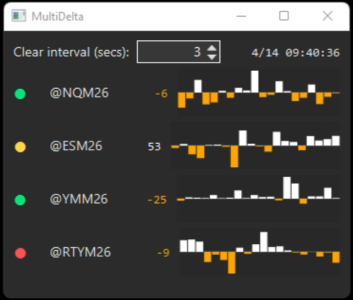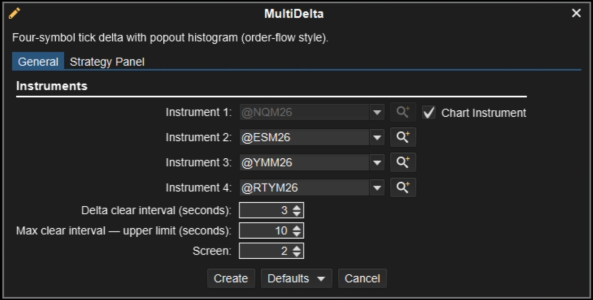
I (and AI) built a standalone MotiveWave strategy called MultiDelta that opens a separate popout panel and tracks live order-flow delta for up to four instruments at once. It is currently an indicator-style dashboard deployed as a strategy shell. At this stage it does not place orders; it focuses on real-time multi-symbol order-flow visualization and state tracking. The strategy wrapper is intentional so it can later be extended into signal/trade automation. Think of it as a real-time confluence indicator panel that can be enhanced later to emit signals or execute entries/exits when multiple order-flow/structure conditions align.
This could also simply be leveraged as an example of how to process ticks from multiple symbols at the same time.
What it does
Traffic light logic
Each row has a dot color based on an internal Renko + EMA(20) state:
For many MW SDK example projects, this is typically an Ant build that produces a plugin/study JAR.
Enjoy!
This could also simply be leveraged as an example of how to process ticks from multiple symbols at the same time.
What it does
- Monitors 4 configurable symbols (multi-instrument)
- ask tick volume adds
- bid tick volume subtracts
- non-positive volume defaults to 1
- Uses a configurable clear interval with spinner control
- Shows next reset timestamp in M/dd HH:mm:ss (tick-time-driven)
- Supports monitor selection for popout placement in multi-monitor setups
Traffic light logic
Each row has a dot color based on an internal Renko + EMA(20) state:
- Green: Renko close above EMA(20) by more than one brick
- Red: Renko close below EMA(20) by more than one brick
- Yellow: within one brick of EMA(20)
- NQ symbols use 8-tick bricks
- other symbols use 6-tick bricks
Notes
- This is calculation-only for Renko/EMA (not plotted on chart).
- Histogram and delta are rendered in the popout panel only.
- The strategy is intended as a live decision-support widget (no order placement logic yet).
Build / Install Instructions
1) Put the source file in your study project
Place (rename MultiDelta.txt to MultiDelta.java):- src/reshlabs/platform/study/reshlabs/MultiDelta.java
2) Build your MotiveWave study JAR
From your study project root, run your normal build command (Ant/Gradle/Maven depending on your setup).For many MW SDK example projects, this is typically an Ant build that produces a plugin/study JAR.
3) Copy the JAR into MotiveWave custom studies/plugins folder
Copy the built JAR into your MotiveWave user extension directory (the same location you use for your other custom studies).4) Restart MotiveWave
Fully restart MW so it loads the updated JAR.5) Add the strategy
- Open a chart
- Add Multi Delta from the Resh Labs menu
- Instrument 1..4
- Clear interval + max interval
- Screen index for popout monitor
6) Activate strategy
Activate the strategy so the popout opens and starts processing live ticks.Enjoy!