Many thanks to everyone. I added two lines for export GDK_CORE_DEVICE_EVENTS=1 and export GDK_BACKEND=x11, and it fixed the mouse scrolling issue.
For newcomers to Linux: if you are using Debian or a Debian-based Linux distribution, you need to open /usr/share/motivewave/run.sh and modify it as shown below:
Bash:
#!/bin/bash
# MotiveWave Java Launcher for Linux.
# This script combines the robust argument handling of the macOS script
# with Linux-specific path conventions and existing scaling detection.

# Exit immediately if a command exits with a non-zero status.
export GDK_CORE_DEVICE_EVENTS=1
export GDK_BACKEND=x11
set -e
I switched to Linux Mint Cinnamon version 22.3 a few days ago (I now use Windows 11 only in a virtual machine). Apart from the mouse scrolling issue, MotiveWave is much faster and smoother. In particular, the 1-day ES chart opens faster, and replay mode loads faster as well. I might modify run.sh a bit more later, but I am already happy with the performance.
I also asked an AI to write a Bash script for me. If you don’t want to make this change every time you install a new MotiveWave.deb file, go to your /home/yourUserName folder and enable “View → Show Hidden Files,” then modify the end of the .bashrc file as shown below:
Bash:
# enable programmable completion features (you don't need to enable
# this, if it's already enabled in /etc/bash.bashrc and /etc/profile
# sources /etc/bash.bashrc).
if ! shopt -oq posix; then
  if [ -f /usr/share/bash-completion/bash_completion ]; then
    . /usr/share/bash-completion/bash_completion
  elif [ -f /etc/bash_completion ]; then
    . /etc/bash_completion
  fi
fi

fixmw() {

  FILE="/usr/share/motivewave/run.sh"

  if grep -q GDK_CORE_DEVICE_EVENTS "$FILE"; then
    echo "MotiveWave mouse issue patch already applied."
  else
    sudo sed -i '/^set -e/i export GDK_CORE_DEVICE_EVENTS=1\nexport GDK_BACKEND=x11' "$FILE"
    echo "MotiveWave mouse issue patch applied."
  fi

}

installmw() {

  DOWNLOAD_DIR="$HOME/Downloads"

  # Find the newest matching MotiveWave .deb file
  DEB_FILE=$(ls -t "$DOWNLOAD_DIR"/motivewave*amd64*.deb 2>/dev/null | head -n 1)

  if [ -z "$DEB_FILE" ]; then
    echo "No MotiveWave amd64 .deb file found in Downloads."
    return 1
  fi

  # Extract version from filename
  FILE_VERSION=$(basename "$DEB_FILE" | sed -E 's/motivewave_([^_]+)_amd64\.deb/\1/')

  # Get currently installed version (if installed)
  INSTALLED_VERSION=$(dpkg -s motivewave 2>/dev/null | grep '^Version:' | awk '{print $2}')

  if [ "$FILE_VERSION" = "$INSTALLED_VERSION" ]; then
    echo "MotiveWave version $FILE_VERSION is already installed."
    return 0
  fi

  echo "Installing MotiveWave version $FILE_VERSION..."
  sudo dpkg -i "$DEB_FILE"

  echo "Installation finished."
}

updatemw() {

  echo "Starting MotiveWave update..."

  # Run installer
  installmw
  INSTALL_STATUS=$?

  # If install failed (like no file found), stop
  if [ $INSTALL_STATUS -ne 0 ]; then
    echo "Update stopped due to installation issue."
    return 1
  fi

  # Apply mouse fix
  fixmw

  echo "MotiveWave update process completed."
}
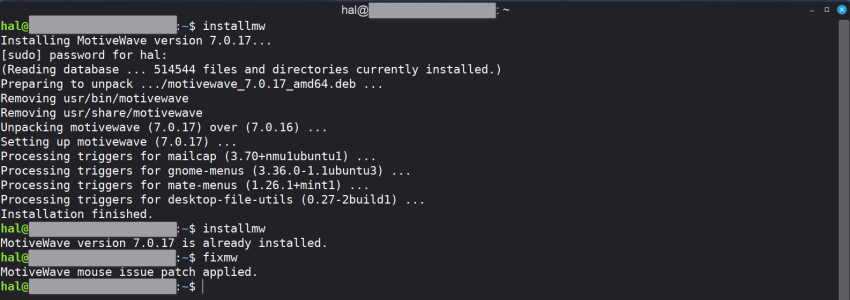
As you can see, I added three functions named fixmw, installmw, and updatemw. Once I download a new MotiveWave.deb installation file into my /home/yourUserName/Downloads, I open the terminal and type "installmw". This checks whether the latest MotiveWave.deb file is installed. If it is not installed yet, it will install the latest version.
Then, I type "fixmw", which opens run.sh in /usr/share/motivewave, finds the set -e line, and adds the following lines above it to fix the mouse scrolling issue:
export GDK_CORE_DEVICE_EVENTS=1
export GDK_BACKEND=x11
It then saves and closes the file. After that, I close terminal and launch MotiveWave.
Instead of using "installmw" and then typing "fixmw", you can simply type "updatemw", which performs both actions.